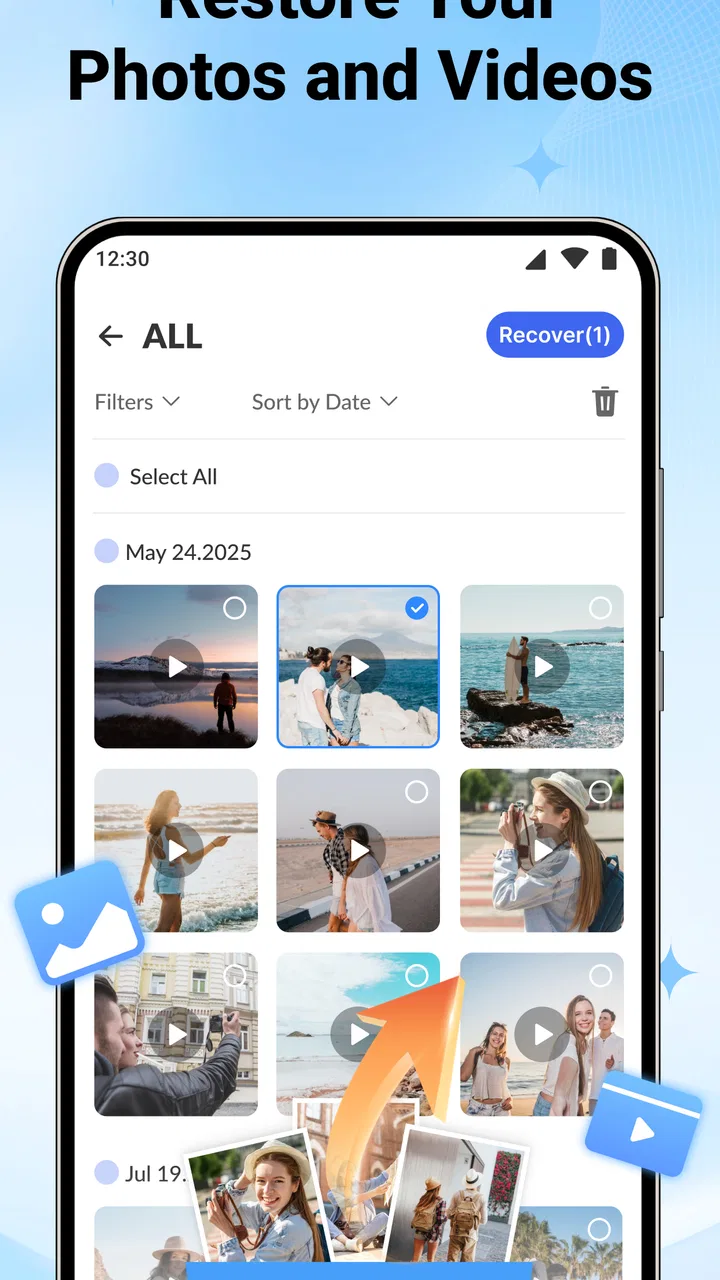
All Restore - Photo & Video
- 4.7
- Rating
- 100.00K
- Installs
- Free
- Price

 Analysis by App-foxy
Deleting a photo by mistake is one of those small phone problems that can consume an unreasonable amount of time. You remember the image, you know it was on the device, and then you start searching through folders, cloud backups, chat attachments, and old copies. All Restore is built around making that search more direct: it is a free business-category utility for recovering images and videos, with a simple approach that is easier to understand than a full file-management suite.
I reviewed it as the kind of tool I would keep available for an occasional emergency rather than open every day. Its appeal is not that it turns every deleted file into a guaranteed recovery. The useful promise is more practical: it gives you one focused place to try before you spend an evening checking every possible storage location. That focus matters when the missing file is a work image, a receipt, a product photo, or a personal video you need quickly.
Why a deleted photo becomes a bigger problem than it should
The recurring issue is not always the deletion itself. It is uncertainty. A picture may have disappeared from the gallery because it was removed, moved, hidden by another application, or left in a folder the gallery no longer indexes. Videos create an even more frustrating search because their files are larger and their locations can be less obvious. A recovery app is useful when it reduces that uncertainty without making the user learn technical storage terminology first.
You May Also Like

 Blood Strike: 2.5 Anniversary
Blood Strike’s Loadouts Turn Every Drop Into a Tactical Gamble
A close look at Blood Strike’s custom loadouts: how fast access to signature weapons reshapes its battle royale rhythm, rewards preparation, and narrows the gap between fights.

 Pandora - Music & Podcasts
Pandora’s Music Is Easy to Start, but Harder to Recover
Pandora’s strength is its low-effort path from a seed to a station. Its weak spot is how much confidence it asks you to place in connection, setup, and quiet recovery.

 8 Ball Pool
 Is Built on Rivalries, Rematches, and Routine
A close look at the rivalries, rematches, shared routines, and unanswered safety questions that turn a quick pool match into a persistent mobile community.

 Samsung Music
’s Quiet Strength Is Playing What You Already Own
Its reach comes less from spectacle than from dependable access to a personal library. That simplicity is both the app’s strongest retention engine and its ceiling.

 AccuWeather: Weather Radar
AccuWeather Review: A Quick, Clear Forecast for Everyday Decisions
For everyday plans, the best forecast is the one you can understand quickly. AccuWeather makes rain timing, radar, and local conditions easy to act on, with a few trade-offs.

 Hill Climb Racing
Why Hill Climb Racing Still Turns Crashes Into One More Run
A tiny car, a bumpy hill and one more upgrade: Hill Climb Racing keeps resurfacing because its simple chaos makes every near-miss feel personal.
More From Our News Desk



That is where this app’s narrow purpose works in its favor. It is not presented as a replacement for a complete backup system, a cloud drive, or a desktop recovery laboratory. Instead, it concentrates on image and video recovery. I found that positioning easier to work with because it keeps the first attempt simple: open the utility, look for recoverable media, and decide what is worth restoring.
The app comes from Simple and practical tools, a name that matches the straightforward feel of the product. It is rated for Everyone, so it is suitable for a broad audience, including someone who is not comfortable navigating advanced Android storage tools. It requires Android 8.0 or later, which is a reasonable compatibility floor for users with older but still functional phones.
Its current version is 1.2.0, and the app has passed the early stage of being completely unknown: it has over 100K installs and a 4.6 average from around 388 ratings. Those figures do not prove that every recovery will succeed, but they do suggest that many people have found the basic idea useful enough to try and rate. I would still judge it by the result on your particular phone, because recovery depends heavily on what happened after deletion.
The first setup should be treated as a search, not a guarantee
My first recommendation is to use the app as soon as you notice a file is missing. This is more important than repeatedly scanning after continuing to use the phone. New photos, downloads, app caches, and system activity can occupy storage space that once belonged to the deleted file. In practical terms, the best recovery workflow begins with restraint: stop taking pictures, avoid large downloads, and do not install several other recovery tools before trying this one.
Because the app is free, the initial decision is easy. There is no purchase barrier between noticing a problem and beginning a recovery attempt. That does not mean I would install it casually on every phone. If your device already has a reliable recycle bin or a well-maintained cloud backup, those options may be safer and more complete. I see All Restore as the quick second line of defense when the usual places do not contain what you need.
On the first useful pass, I would separate the task into two stages. First, identify whether the missing item appears among the recoverable results. Second, decide where to put the restored copy and how to protect it afterward. Many people focus only on the scan and forget the second part. A recovered file is not truly safe if it is immediately mixed into a crowded gallery, renamed without context, or left in a location that may be cleaned automatically.
A practical habit is to restore only the files you recognize instead of selecting everything. This reduces clutter and makes it easier to notice damaged or duplicate results. It also helps when you are searching for one specific image, such as a document photographed during a meeting. If you restore a large group without checking, you may spend nearly as much time sorting the results as you would have spent searching manually.
Useful everyday situations beyond accidental deletion
The obvious scenario is a family photo removed while clearing space. A less obvious one is a work image that was captured quickly and never copied to a computer. Imagine photographing a damaged package for a return, deleting older media later, and then realizing that the evidence is gone. In that situation, a focused recovery attempt can be more convenient than searching through several messaging threads for the image you may or may not have sent.
Another realistic case involves a video that vanished after a gallery cleanup. Videos are often harder to replace than ordinary snapshots because they may record a child’s performance, a short demonstration, or a one-time event. I would use the app before recording more material, especially if the missing clip is recent. The time saved comes from having a dedicated recovery route instead of guessing which folder or application handled the file.
There is also a useful distinction between recovery and rediscovery. Sometimes the file is not truly gone; it is simply difficult to locate. A photo may have been saved by a camera application, a browser, or a messaging app rather than the standard camera folder. A recovery utility can be a practical way to surface media that no longer appears where you expect it. However, I would not assume that every unusual folder or hidden item is recoverable just because it once existed on the phone.
For people who regularly create content on a phone, the app can function as a quick emergency check after a mistaken cleanup. It is not a substitute for copying important originals to another location, but it may save time when the mistake is small and recent. I especially like the idea of using it before asking a colleague or client to resend an image, because that avoids unnecessary back-and-forth.
Families can also benefit from its directness. A less technical user may not know how to inspect storage categories or browse application-specific folders. A tool dedicated to photos and videos gives them a more approachable first step. I would still help them review the recovered results rather than letting them restore every item blindly, since duplicate files and unfamiliar thumbnails can make the gallery confusing.
Where it removes friction compared with usual alternatives
The usual alternatives fall into three groups: a phone’s built-in trash folder, cloud backup, and manual file browsing. The built-in trash is usually the cleanest option when the deletion happened recently and the gallery still manages the item. Cloud backup is better when it was enabled before the loss, because it can preserve a copy independently of the device. Manual browsing is useful for misplaced files but can be slow and confusing, particularly when several applications create their own media folders.
All Restore sits between those choices. It is more focused than a general file manager and less dependent on remembering which backup service was active. That makes it helpful when the normal trash location is empty or when you are not sure which application originally stored the media. The trade-off is that a focused recovery tool cannot replace the reliability of a backup that already contains the original file.
The time-saving benefit is strongest when you have a clear target. If I know I lost one video after cleaning the gallery, I can judge results quickly. If I am trying to recover months of mixed media after a major storage problem, the process becomes more demanding. In that larger situation, a computer-based recovery service or a professional backup workflow may be a better choice, especially when the files are valuable and the phone has suffered physical damage.
I also prefer to think of the app as a first attempt rather than a final authority. A failed search does not necessarily explain why a file disappeared, and a visible result does not automatically mean the restored copy will be perfect. Media can be incomplete, duplicated, or affected by whatever happened before the recovery attempt. For an irreplaceable file, I would try the app promptly, then move to a more specialized option instead of repeatedly writing new data to the same phone.
One useful workflow is to recover a small sample first. Choose one image and one video if both types matter, then check whether the results open normally and whether their details look sensible. If the sample is usable, continue selectively. This approach avoids filling the device with questionable copies and gives you an early sense of whether the recovery path is worth pursuing.
Small habits that make a recovery attempt more effective
The first habit is to stop treating the phone as normal immediately after a deletion. Do not record replacement videos, download large offline playlists, or run a storage cleaner while you are still trying to recover the original. This is a general storage principle, but it is especially relevant here because the app’s value depends on what remains available on the device.
The second is to preserve the recovered copy away from the original location. After finding an important image, send it to a computer, an external storage device, or a trusted backup destination rather than leaving it as the only copy on the phone. Recovery is a rescue step, not a backup plan. I would also rename a business-related file with a useful description once it is safely copied, since “restored image” is not enough information when you need it again later.
The third is to avoid confusing thumbnails with confirmed files. A preview can tell you that the app found something recognizable, but opening the restored result is the real test. For videos, check the beginning and a later point in playback. For photos, zoom in on important text or details. This is particularly important for receipts, serial numbers, and evidence images where a file that merely opens may still be too damaged to use.
A fourth practical insight is to keep the recovery task narrow. If you need one document photo, do not immediately restore every old screenshot and social-media image. Narrow selection makes the result easier to verify and reduces the chance that you will overlook the file that matters. It also keeps the restored gallery from becoming a second cleanup project.
Finally, use the app before experimenting with complicated fixes. A beginner may be tempted to change storage settings, move folders, or install several utilities at once. Those actions can make it harder to understand what changed. A simple, controlled attempt gives you a clearer result and preserves the option of seeking more advanced help later.
What I would want users to understand before relying on it
The biggest limitation is inherent to recovery tools: they cannot promise that every deleted photo or video will return in its original condition. Success depends on timing, storage activity, the way the file was removed, and the state of the device. I would never treat a successful-looking scan as proof that the app can recover anything under any circumstance.
The app is also not the right primary solution for someone who needs a complete media-management system. If your main goal is automatic organization, cross-device synchronization, scheduled backups, or long-term archiving, a dedicated cloud service or backup application is a better fit. All Restore addresses an urgent, specific problem; it does not replace the habits that prevent that problem from becoming serious.
Users with damaged hardware should set their expectations carefully. If the phone cannot read its storage reliably, an app may not be able to do much. In that case, continuing to test multiple tools can waste time, and professional recovery may be more appropriate for irreplaceable material. The same applies to a phone that has been reset or heavily used since the deletion: I would consider the chances lower and protect any remaining data before trying more experiments.
There is also a human factor. A simple interface can make the first step less intimidating, but recovery still requires judgment. You need to recognize the correct file, avoid restoring unnecessary copies, and secure the result afterward. The app can reduce technical friction; it cannot decide which family memory or business document is genuinely important.
My verdict for Android users deciding whether to install it
I would recommend All Restore to anyone who has just lost an image or video and wants a straightforward recovery attempt before turning to more complicated solutions. It is free, aimed at Everyone, and focused enough to be approachable. Its 100K-plus installs and 4.6 average rating show that it has attracted meaningful interest, while the developer’s emphasis on simple tools is reflected in the app’s practical role.
I would not recommend relying on it as your only protection. The smartest combination is a recovery utility for emergencies and a separate backup routine for important media. If the missing file is recent and the phone has not been used much since deletion, this app is worth trying promptly. If the loss followed serious storage damage, a reset, or prolonged heavy use, I would move quickly toward a specialized recovery option instead of expecting a phone app to solve everything.
In my experience, the strongest reason to keep it available is the time it can save at the exact moment when searching manually becomes frustrating. It gives accidental deletion a sensible first response: pause, scan, inspect, and protect what you recover. That is not magic, and it is not a replacement for backups, but for a focused photo or video rescue attempt, All Restore is a useful tool to have ready before the next careless tap.
FAQs for All Restore - Photo & Video
01What is All Restore - Photo & Video used for?
All Restore - Photo & Video is designed to recover deleted photos and videos from your device. Whether you accidentally deleted a file or lost it during a system update, this app provides a simple solution to restore media files with just a few taps, ensuring your memories are never lost.
02How does the recovery process work in All Restore?
The app scans your device's storage to identify recoverable media files. Once the scan is complete, it displays a list of photos and videos that can be restored. Users can then select which files they want to recover, and the app will restore them to the original location or a designated folder.
03Is All Restore - Photo & Video safe to use?
Yes, All Restore - Photo & Video is safe to use. It operates with a focus on user privacy, ensuring that no data is shared externally. The app requires necessary permissions to access storage but does not alter any files without user consent, providing a secure recovery experience.
04Can All Restore retrieve files from external storage devices?
All Restore primarily works with internal device storage, but it may also support certain external storage devices, like SD cards, depending on your device's compatibility. Make sure your external storage is properly connected to your device before starting the recovery process for best results.
05Are there any limitations in the free version of All Restore?
The free version of All Restore - Photo & Video may have limitations on the number of files you can recover or the features available. If you require more extensive recovery options, you might consider upgrading to the premium version for additional features and an ad-free experience.
Pros
- Efficiently restores deleted media files.
- Simple and intuitive user interface.
- Supports a wide range of file formats.
- Quick scanning and recovery process.
- No root access required for recovery.
Cons
- Limited free version features.
- Occasional ads may disrupt usage.
- Not all files guaranteed to recover.
- Requires internet for some functions.
- Lacks advanced recovery options.

All Restore - Photo & Video
Gallery